Customize Event Table
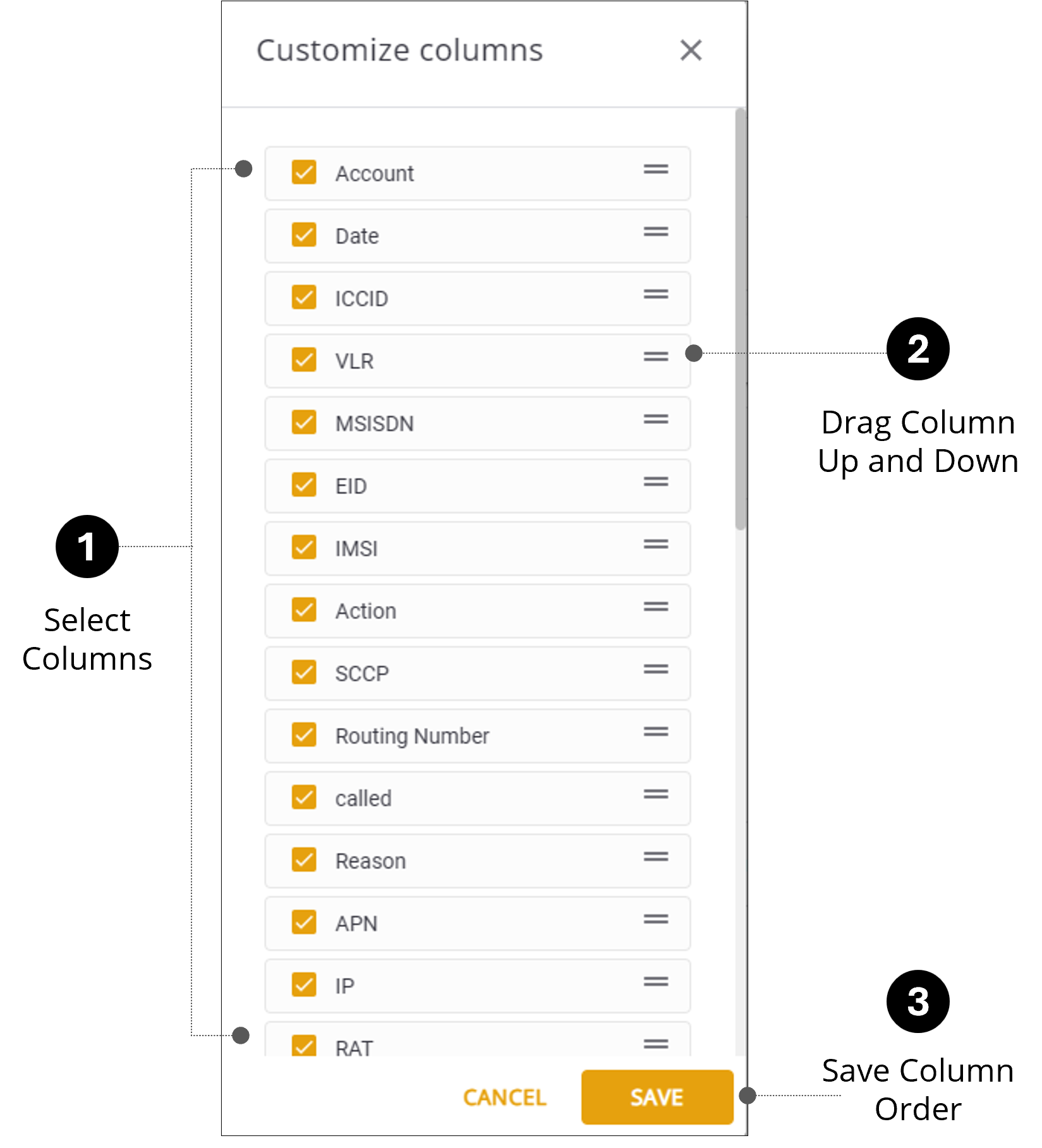
Users can customize the view by selecting which columns are displayed and in which order. This convenient feature enables focus on the specific information they need.
To customize the data table columns, do these steps:
- Select Events from the sidebar Menu.
- Click Customize Columns on the table header to display a list of columns.
- Check one or more columns you want to display in the event table.
- Grab the icon on the right side of the column list.
- Drag the selected column up or down as desired.
- Repeat Steps 4-5 for each of the selected columns.
- Click Save to update event data table.
A screen capture of the Customize Columns dialog box is shown here.
 l
l